By Owen Harte · November 4, 2026
My photo library had the classic problem: twelve years of folders called IMG_export_final_2, three phone backups, a drawer of card dumps, and a growing pile of short video clips nobody could find. I did not need a new editor. I needed a photo organizer for Mac and, more importantly, a system I would actually keep using.
This is the rating-and-tagging system I settled on after a few false starts, and the app I now run it in.
Why a system beats an app
Every Mac photo manager gives you roughly the same building blocks: folders, stars, tags and search. What decides whether your library stays clean is the meaning you attach to them. If "three stars" means something different every time you rate, the stars are noise. So before touching software, I wrote my rules on a sticky note.
Rule 1: Folders are for where and when, never for what
Folders answer one question: where did this come from? I use Year / YYYY-MM-DD Event and nothing else. A photo lives in exactly one folder forever. Anything thematic — "dogs", "Lisbon", "client: bakery" — goes into tags, because a photo can belong to many themes but only one shoot.
Rule 2: Stars are a decision, not a compliment
Five ratings, five fixed meanings:
- 1 star — technically broken (blur, closed eyes). Candidate for deletion.
- 2 stars — duplicate or near-duplicate I keep "just in case".
- 3 stars — a normal, fine record of the moment.
- 4 stars — one I would show someone.
- 5 stars — one I would print or put in a portfolio.
The trick is doing the passes in order. First pass: only hunt for 1s and 5s. Second pass: sort the middle. Because the meanings are fixed, a filter like "4 stars and up from 2023" gives me a real highlights reel in seconds.
Rule 3: A small, boring tag vocabulary
I cap myself at about forty tags, in three families: people (first names), places (city or venue), and purpose (print, client, reference, screenshot). If I want to create a new tag, I first check whether an existing one already covers it. Fewer, consistent tags beat hundreds of clever ones.
The app I run it in: PixRoom
The system works in any decent organizer, but I wanted something native, fast, and local. I ended up on PixRoom, a photo and video manager for Mac. It browses the folders that already exist on disk, so Rule 1 costs nothing — there is no import step and no proprietary catalog to escape later. It needs macOS 14 or later and is on the Mac App Store.
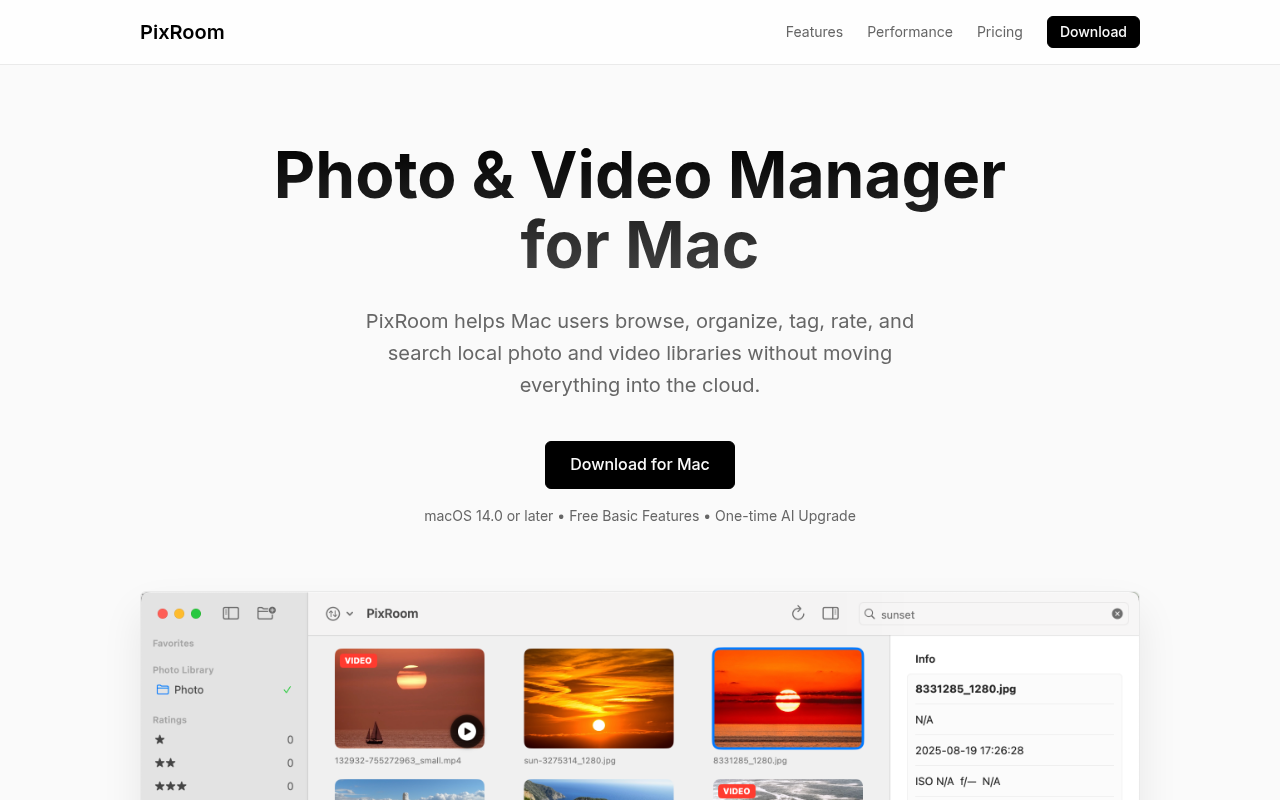
Above: PixRoom's homepage — browse, organize, tag, rate and search local photo and video libraries without moving them into the cloud.
What matters for this workflow is that the core pieces are in the free tier: folder organization, 1–5 star ratings, manual tags, fast browse and search, and hardware-accelerated video playback. That is the whole system above, at no cost and with no subscription. Nothing is uploaded; the library stays on your Mac.
The photo organizer for Mac page describes the same split I use — folders for structure, tags for flexible grouping, stars for favorites and review passes.
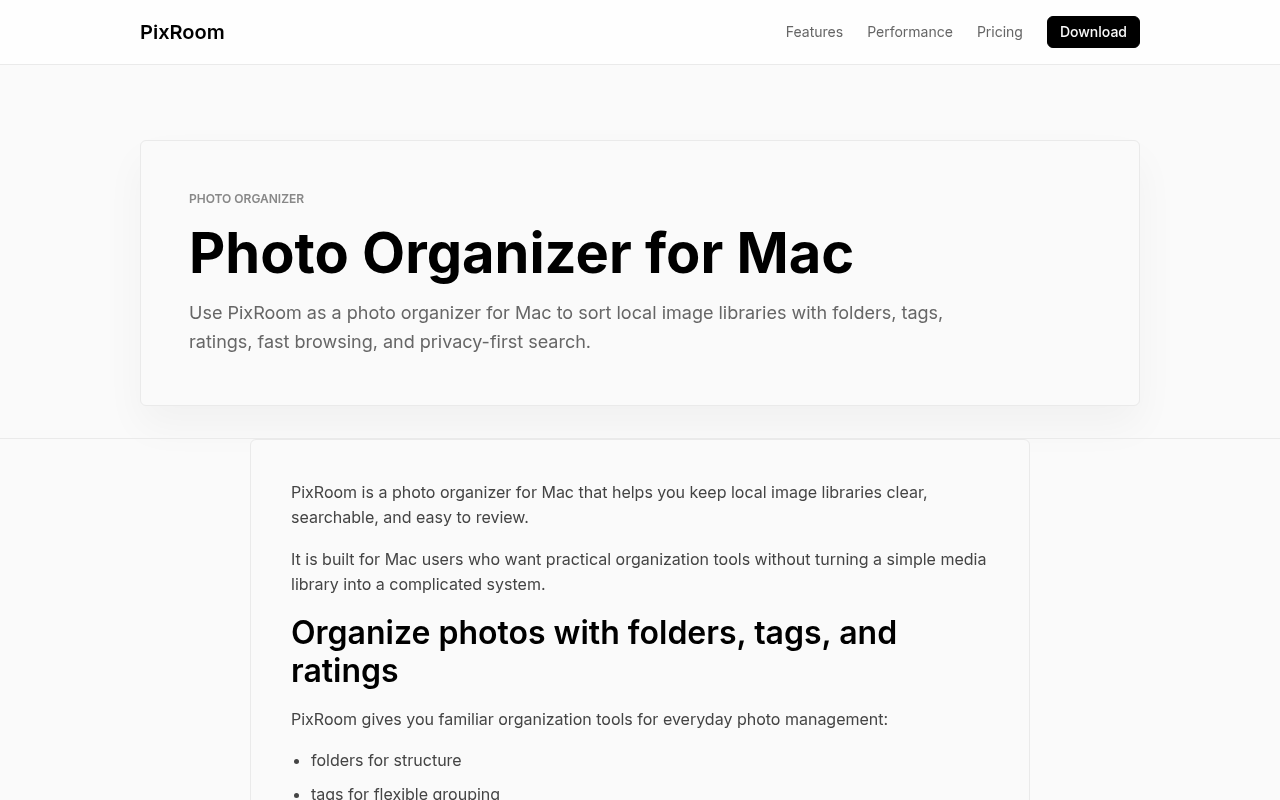
Above: PixRoom's Photo Organizer for Mac page — folders for structure, tags for grouping, ratings for review passes.
Rule 4: Videos follow the same rules
The part that finally fixed my library was treating clips like photos. Most phone folders mix stills, screen recordings and short videos. Because PixRoom manages photos and videos together, a clip gets a star rating and the same tags as the stills from that day, and I can scrub through it with native playback instead of opening another app. If video is most of your archive, the site also has a Mac video manager overview.
Where AI search fits (optional)
Manual tags carry you a long way, but they only find what you remembered to tag. PixRoom sells an optional AI Upgrade for a one-time $19.9 that adds on-device natural-language search ("sunset beach", "kids at dinner") and smart tag suggestions. I treat it as a convenience for the decade of photos I will never tag by hand, not as a replacement for the system. If you are not sure, run the free system for a month first; you will know whether you miss AI photo search on Mac.
What it is not
To be fair about scope: this is an organizer, not an editor. There is no develop module, no masking, no RAW processing pipeline. Keep your editor of choice for pixels, and use the organizer to decide which pixels deserve that time. It is also Mac-only.
A one-hour starter session
- Pick the messiest single year in your library.
- Rename event folders to
YYYY-MM-DD Event. - Do one fast pass marking only 1s and 5s.
- Add people and place tags to the 5s only.
- Filter by 1 star, review, and delete what you truly do not need.
One clean year is enough to prove the system, and the rest of the library follows faster than you expect.
Related: Marcus Ellery covers the "do I really need Lightroom?" question from a different angle in Mac photo manager without Lightroom: organizing local libraries offline — worth reading if you are deciding which app holds the catalog.